Learn how to properly configure time synchronization in an Active Directory environment. Why the PDC emulator is a key component of synchronization and how to prevent errors in the Windows Time Service (W32Time). A guide to setting up an NTP server and troubleshooting synchronization errors.
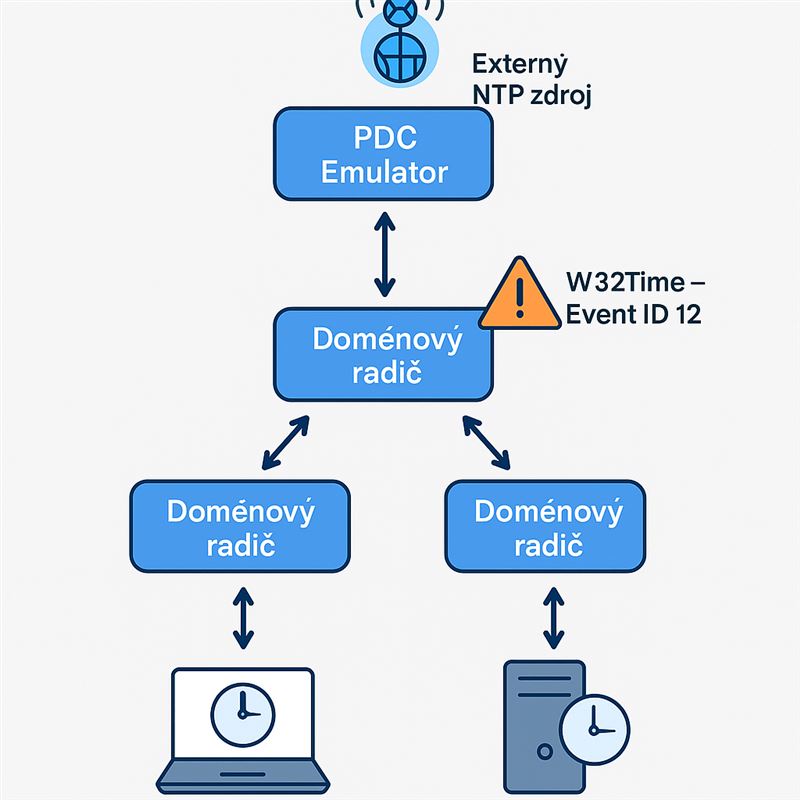
By default, all computers and devices in a domain synchronize their system time using the domain hierarchy. Domain members synchronize their time with domain controllers, which in turn synchronize their time with the domain controller that serves as the PDC emulator. The PDC emulator of the forest root domain is at the top of the domain hierarchy; therefore, configuring this domain controller to synchronize time with the domain hierarchy is invalid. The Windows Time Service notifies you of this condition by writing Event ID 12 to the Windows Event Log from the W32Time event source. In some scenarios, the PDC emulator obtains its time from the BIOS clock. However, this approach has drawbacks. If the time and date are not set accurately in the PDC emulator’s BIOS, the time and date settings will be incorrect throughout the domain. Additionally, if the PDC emulator goes offline, domain members will be unable to synchronize time. A better approach is to configure the PDC emulator to synchronize time directly with an external time source. Alternatively, you can configure another device in your domain to synchronize time with an external time service and then configure the PDC emulator to use your internal time server as the authoritative time source. Authoritative external time sources are Internet-based services, typically managed by government, scientific, or educational institutions, that allow you to synchronize your system time using the Network Time Protocol (NTP). For example, NIST provides time servers at various locations in the United States.
An error related to NTP server configuration will manifest in Active Directory and display the following message in the Event Log:
Feb 03 13:00:37 0.36 Microsoft-Windows-Time-Service The time service has not synchronized the system time for the last 86400 seconds because none of the time service providers provided a usable time stamp. The time service will not update the local system time until it is able to synchronize with a time source. If the local system is configured to act as a time server for clients, it will stop advertising as a time source to clients after 0 seconds. The time service will continue to retry and synchronize time with its time sources. Check the system event log for other W32time events for more details. Run 'w32tm /resync' to force an instant time synchronization. You can control the frequency of time source rediscovery using the ClockHoldoverPeriod W32time configuration setting. Modify the EventLogFlags W32time configuration setting if you wish to disable this message.
View time configuration status:
w32tm /query /status /verbose
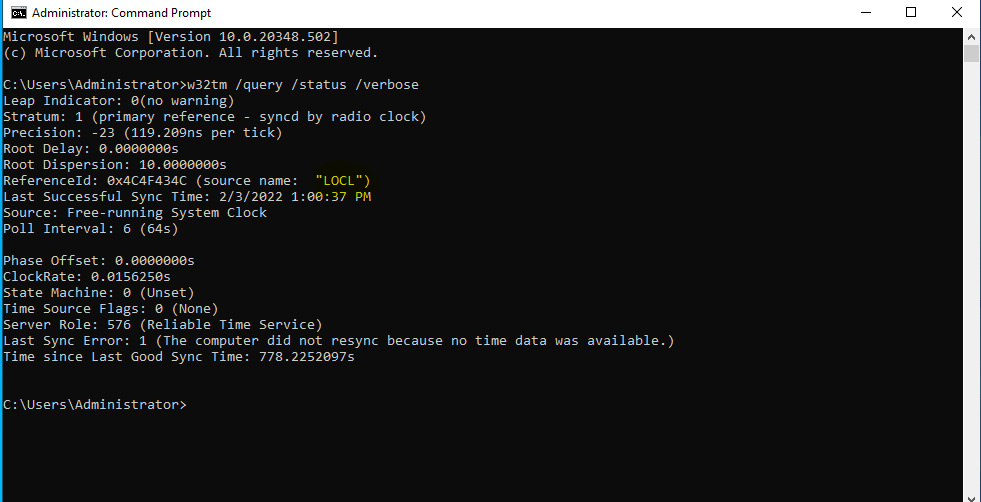
Source name: LOCAL – defines time synchronization using a local time source (the RTC chip on the computer's motherboard). The time can be set by entering the following command:
w32tm.exe /config /syncfromflags:manual /manualpeerlist:131.107.13.100,0x8 /reliable:yes /update

The parameter `manualpeerlist:131.107.13.100` specifies a list of IP addresses where NTP servers are running. To ensure stability, you should select several NTP servers at the same time.
You can find more technical articles, guides, and IT news on the website: www.virtualall.sk
