Backing up Active Directory (AD) is one of the most critical tasks in IT infrastructure management. As an expert in Veeam, backup, and cybersecurity, I have seen firsthand on numerous occasions just how crucial proper Active Directory backup is—not only for data recovery but also for resilience against cyberattacks. In this article, I’ll share my experience with setting up AD backups, the reasons why it’s important, and the benefits of backing up the AD database itself versus backing up the entire virtual machine (VM).
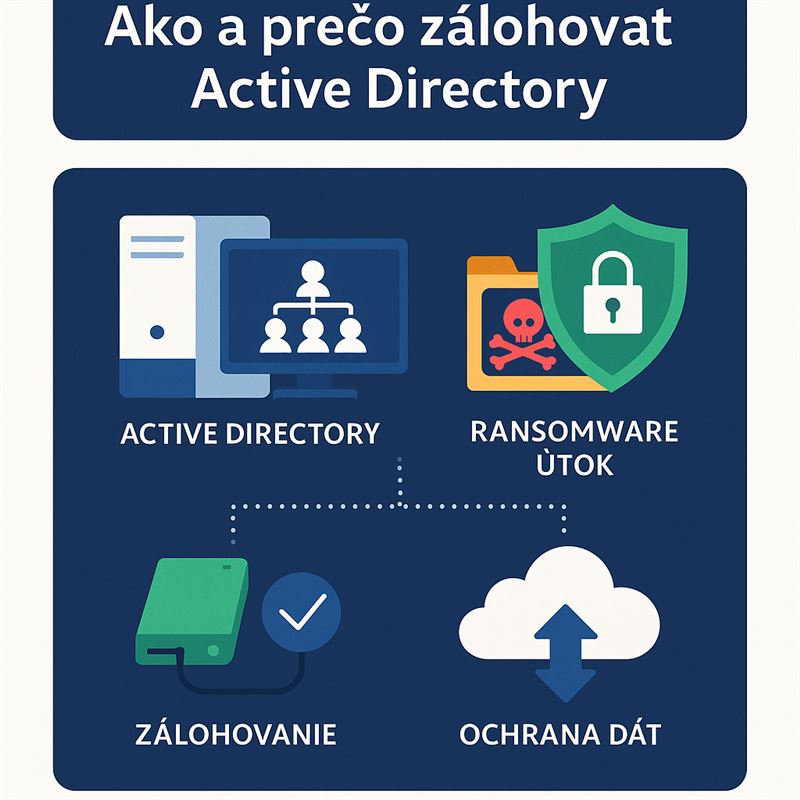
Why Back Up Active Directory?
Active Directory is the heart of every Windows infrastructure. It manages authentication, authorization, and the administration of users, devices, and groups. Without a functional AD, the entire network can stop working. If AD were to become inoperable (whether due to an attack, hardware failure, or human error), the consequences could be catastrophic:
- Service outages: Without AD, users cannot access network resources, applications, or even their workstations.
- Data loss: Damage to the AD database (NTDS.dit) can mean you lose data on accounts, groups, and configurations.
- Increased vulnerability: If AD is compromised, an attacker can escalate their privileges and gain access to the entire network.
Cybersecurity and Active Directory
Cyberattacks, particularly ransomware, are increasingly targeting critical components of IT infrastructure, such as AD. Attackers attempt to gain access to domain controllers to escalate privileges, disable security measures, or encrypt the AD database.
An AD backup is crucial in such situations:
- Rapid recovery after an attack: If AD is compromised, you can restore the database and configurations from an unharmed backup.
- Minimizing downtime: Restoring an AD backup helps minimize service outages, which is essential for business continuity.
- Protection against encryption: If ransomware encrypts the AD database, a functional backup is often the only way to restore the system without paying the ransom.
The difference between backing up the AD database and the entire VM
Backing up the entire virtual machine running the domain controller is, of course, good practice, but backing up the AD database (NTDS.dit) and its components offers several key advantages:
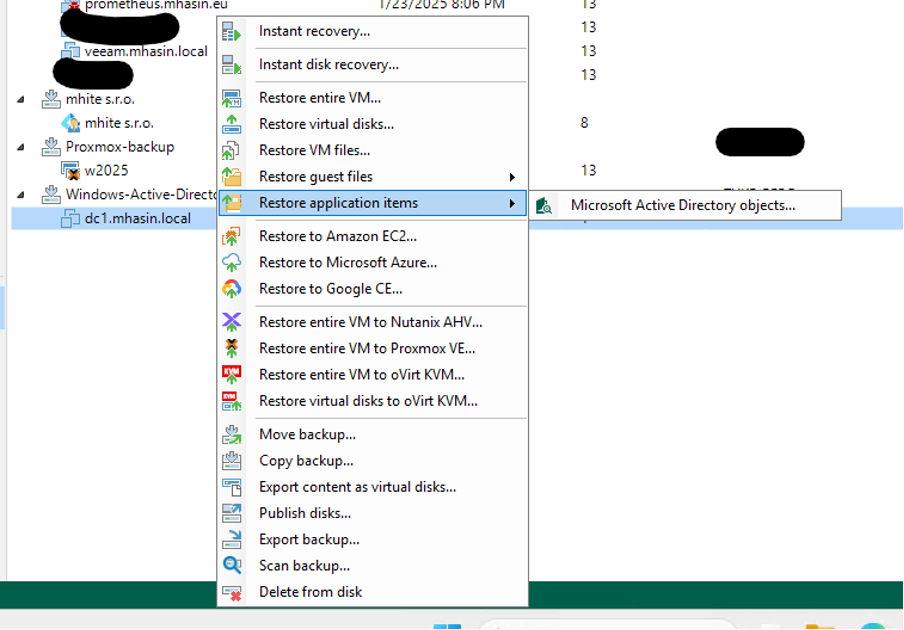
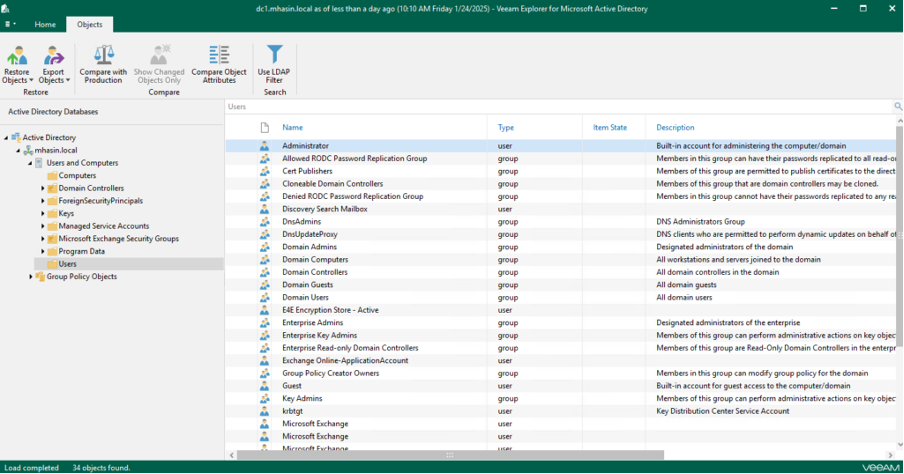
- Granular recovery: With an AD database backup, you can restore individual objects (e.g., accounts, groups) without needing to restore the entire VM. This means that if someone accidentally deletes a user account, you can quickly restore it.
- Restore speed: Restoring the AD database is significantly faster than a full VM restore, which is critical during critical outages.
- Lower overhead: An AD database backup consumes less storage space and backup resources than a full VM backup.
- Better protection against attacks: In the event of a ransomware attack or other compromise, it is often easier to restore just the AD database than the entire system.
How an Active Directory backup helps during ransomware attacks
When an attacker encrypts or damages the AD, the consequences can be devastating. However, properly configured backups provide a critical defense:
- Recovery without paying a ransom: Thanks to an AD backup, you can restore the system to a functional state without paying the attackers.
- Preservation of data integrity: If the AD database is damaged or modified (e.g., by the creation of illegitimate accounts), a backup allows you to revert to a clean state.
- Response speed: An AD backup reduces the time needed to recover from an attack, thereby minimizing downtime and financial losses.
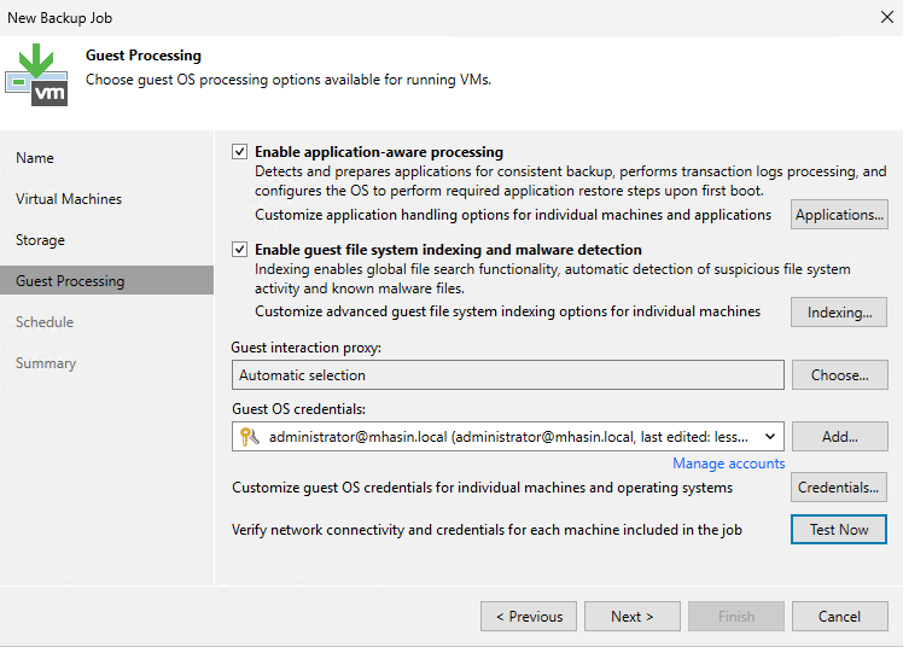
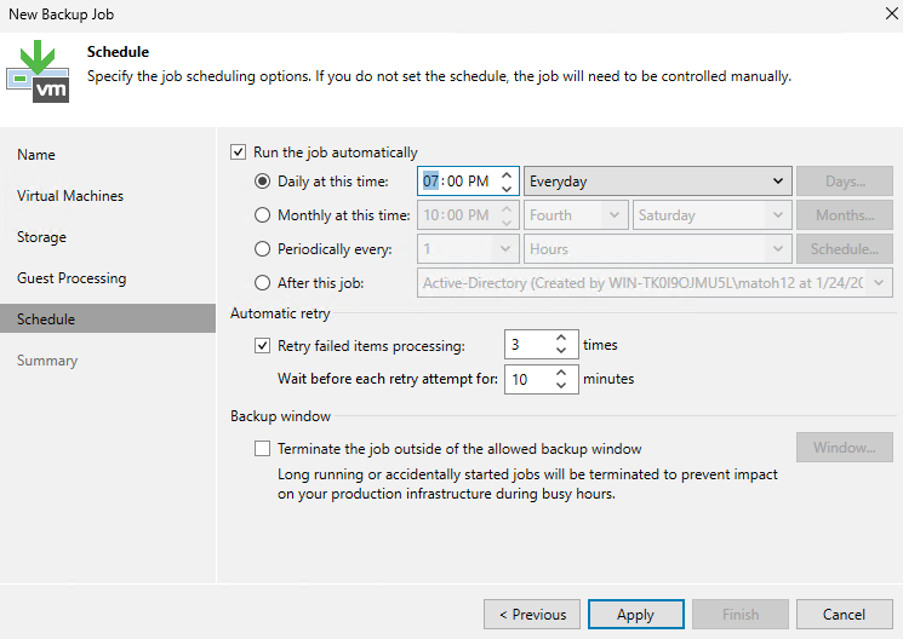
Backup Configuration
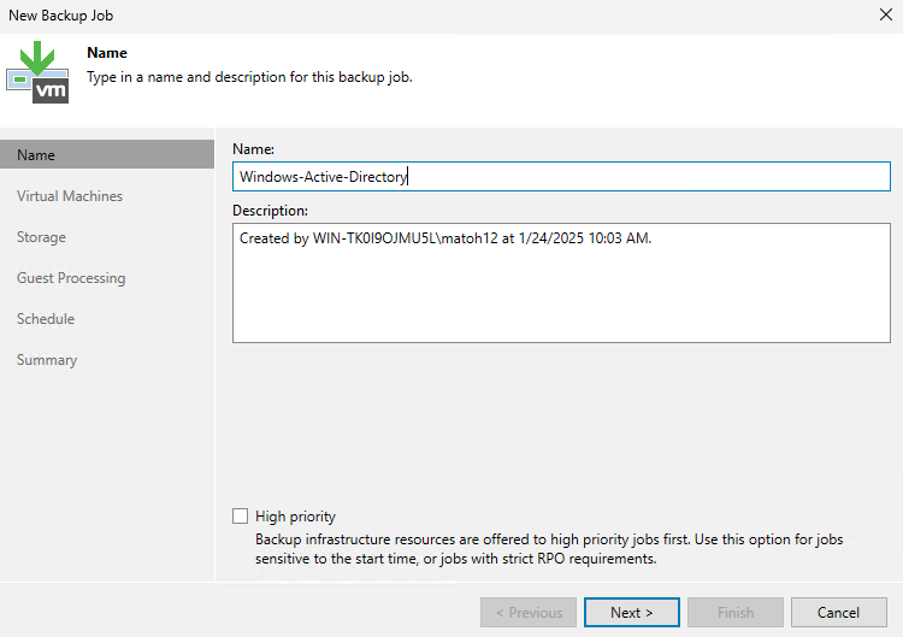
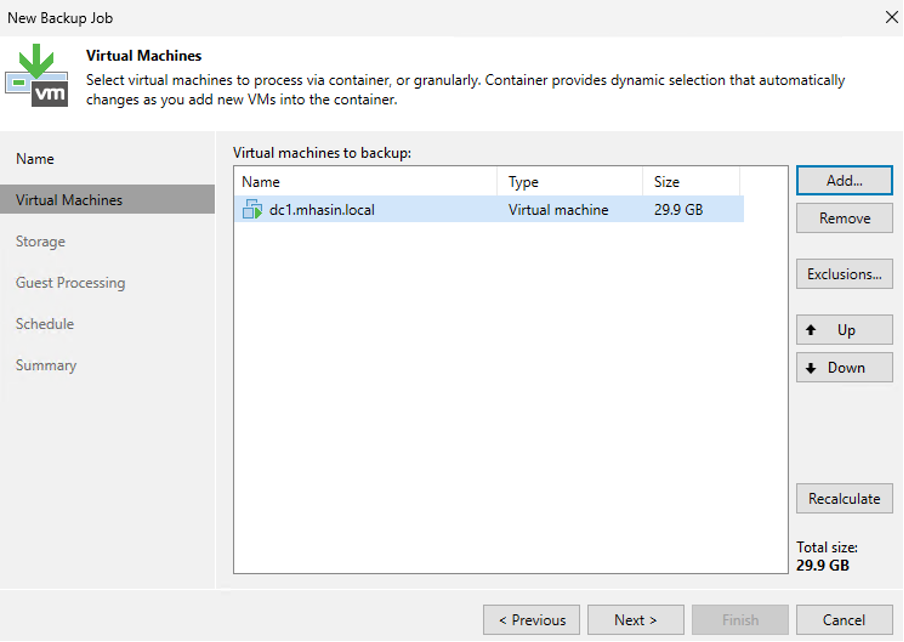
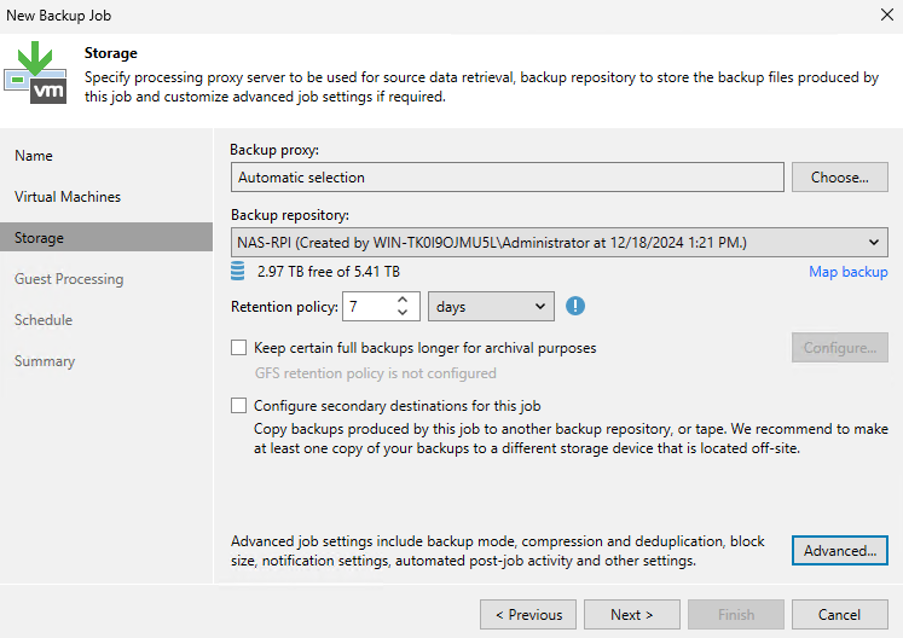
Postup pri obnove
Active Directory Backup Recommendations: Secure Your Data the Right Way
When backing up Active Directory (AD), it is important to implement best practices that not only ensure data recoverability but also protect backups from cyberattacks, such as ransomware. Based on my experience in backup and cybersecurity, I recommend the following:
1. Backing up to multiple locations
- On-site backup: Store one copy of the backup at your primary location for quick access and recovery. This copy should be on a local server or dedicated storage.
- Offsite backup: Back up your data outside your primary location (e.g., to another data center or the cloud). In the event of a physical disaster (fire, flood), you’ll have the assurance that your data is safe.
- Cloud backup: Use cloud services such as Azure Backup, AWS S3, or other secure storage solutions that offer high availability and data redundancy.
2. Using immutable storage
Immutable storage ensures that once data is written, it cannot be modified or deleted. This is key to protecting against ransomware attacks.
- Practical implementation:
- When using Veeam, you can configure backups to immutable storage using supported systems such as AWS S3 Object Lock, Hardened Repository, or Wasabi.
- In an on-premises environment, use WORM (Write Once, Read Many) storage, which ensures that backups remain unchanged for a defined period.
3. Backup Encryption
Backup encryption is essential for protecting data from unauthorized access. Even if someone physically gains access to your backups, encryption ensures that the data remains unreadable without the correct key.
- Recommendations:
- Use AES-256 bit encryption, which is considered a secure standard.
- When configuring backups in Veeam, set a password and enable encryption for each backup job.
- Ensure that encryption keys are securely stored outside the main system, such as in a Hardware Security Module (HSM) or a secure database.
4. The 3-2-1 Rule for Backups
This rule is the foundation of every good backup strategy:
- 3 copies of data: Always keep at least three copies of your data (the original and two backups).
- 2 different types of media: Back up to two different types of media (e.g., disk and cloud).
- 1 offsite copy: One copy should be stored outside your main location.
5. Regularly Test Backup Recovery
A backup is only useful if you can restore it. Regularly test the recoverability of your backups, including:
- Granular restore: Verify that you can restore specific objects (e.g., user accounts, group policies).
- Full restore: Simulate the restoration of the entire AD database and domain controller.
- Automated testing: Use tools such as Veeam SureBackup that automatically test the usability of backups.
6. Creating an Isolated Backup Environment
Ransomware often encrypts not only primary data but also connected backups. To protect against this scenario:
- Use air-gapped backups: Physically or logically disconnect the backup storage from the network so that ransomware cannot access it.
- Separate the backup network: Operate the backup server and storage on an isolated network, separate from the production infrastructure.
7. Automating Backups and Notifications
Automated backup processes minimize the risk of human error. Configure:
- Regular backup jobs: Automate backups according to a set schedule (e.g., daily or multiple times a day).
- Notifications: Enable email alerts regarding backup status (successful/failed backup jobs).
8. Protecting the backup server
The backup server itself should be protected against cyberattacks.
- Enable multi-factor authentication (MFA): Secure access to the backup system using MFA.
- Regular updates: Update the backup software and operating system to eliminate known vulnerabilities.
- Access segregation: Only selected administrators should have access to the backup server.
9. Securing the backup timeline
Use retention policies that allow you to revert to backups prior to a ransomware attack. For example:
- Retain backups for at least 30 days (or longer, as needed).
- Ensure you have backups available from the period prior to the system compromise.
10. Veeam and Advanced AD Backup Features
Veeam offers specific features for effective Active Directory backup:
- Granular recovery: Allows you to restore specific objects (users, groups, policies).
- SureBackup: Automatic testing of backup recoverability.
- Hardened Repository: A feature for immutable storage that protects backups from modification.
Conclusion
Active Directory is one of the most critical components of a Windows infrastructure. Backing it up is essential not only for protection against failures and attacks but also for rapid recovery after incidents. Setting up AD backups is not complicated, especially if you use tools like Veeam, which provide an intuitive interface and advanced recovery options.
As an infrastructure administrator and cybersecurity expert, I always recommend thoroughly backing up all AD components and regularly testing their recovery. It’s better to be prepared than to face a disaster with no way to fix it.
You can find more technical articles, guides, and IT insights on the website: www.virtualall.sk
