Interesting Facts from the World of Cybersecurity by Martin Hasin, Part 1. Every week, we’ll bring you a column featuring interesting facts from the world of cybersecurity by Martin Hasin Find out why backing up Microsoft 365 with Veeam Backup for Microsoft 365 protects your data from loss, ransomware, and service outages. Ensure uninterrupted access to emails, documents, and other critical data.
Many companies today believe that if they use cloud services like Microsoft 365 (Office 365), they don’t need to worry about backups. After all, everything runs in the cloud, and the cloud is secure, isn’t it? However, this is a dangerous misconception.
While Microsoft ensures high availability for services like Exchange Online, SharePoint Online, OneDrive for Business, and Microsoft Teams, it does not guarantee comprehensive protection against data loss, user error, or malicious attacks. Their responsibility falls under the so-called shared responsibility model—where they provide the infrastructure, but data protection and recovery are your responsibility.
The most common causes of data loss in Microsoft 365 include:
- Accidental data deletion (a user deletes an email or document and only realizes it after the retention policy has expired),
- Intentional data corruption (a former employee, an insider attacker),
- Malware, ransomware, and phishing attacks,
- Legal or audit requirements that mandate long-term record retention outside of Microsoft.
That’s why it’s important to have your own independent backup of Microsoft 365 data—and that’s where a tool like Veeam Backup for Microsoft 365 comes in. It allows you to create regular backups of emails, documents, SharePoint sites, and even Teams chats, with the ability to quickly restore and store them outside the Microsoft cloud.
What should you back up in Microsoft 365?
Microsoft 365 includes several services that are critical to the day-to-day operations of an organization. Veeam Backup for Microsoft 365 allows you to back up:
- Exchange Online – emails, calendars, contacts, tasks,
- OneDrive for Business – users’ personal files,
- SharePoint Online – team sites, documents, lists, and libraries,
- Microsoft Teams – conversations, files, and connected services.
By backing up these services, you not only gain protection against data loss but also the ability to perform granular recovery—for example, restoring a single specific email or file without having to restore the entire account.
Benefits of the Veeam Backup for Microsoft 365 solution
Using Veeam’s tool offers several key benefits:
- Full control over backups – you decide where the data will be stored: locally (NAS, disk array), in the cloud (Azure Blob, AWS S3), or in a hybrid environment.
- Granular recovery – quickly restore specific emails, documents, or team files.
- Support for legal archiving – data retention for audit and legal purposes (so-called “litigation hold”).
- Easy search – a powerful search engine allows you to find a specific email or document in the backup in just a few seconds.
- Automation and scheduling – set it up once and the system handles regular backups without your intervention.
How is Veeam Backup for Microsoft 365 deployed?
- Installing Veeam Backup for Microsoft 365 – the software is installed on a Windows server (physical or virtual).
- Connecting to a Microsoft 365 tenant – via modern authentication (OAuth) with minimal permissions.
- Defining backup policies – you select which user mailboxes, OneDrive accounts, SharePoint sites, or Teams you want to back up.
- Selecting backup storage – for example, a local disk, deduplication device, NAS, or object storage (e.g., Azure Blob).
- Monitoring and reporting – a web dashboard or email notifications provide updates on the status of backups.
Recommended hardware requirements for Windows Server with Veeam Backup for Microsoft 365
Operating System
- Windows Server 2022 or 2025 (64-bit)
- Recommended: fully updated system with all security updates installed
Processor (CPU)
- Minimum: 4 cores (e.g., Intel Xeon or AMD EPYC)
- Recommended: 8 cores or more for a larger number of M365 users (>100)
RAM
- Minimum: 8 GB
- Recommended: 32 GB RAM for faster processing and handling large volumes of data
Disk storage
- For software and system installation: SSD drive with at least 200 GB of free space
- For backup storage:
- Type: HDD or dedicated disk array / NAS / SAN
- Capacity: depending on the number of users and retention policy (e.g., for 100 users and 1-year backups, we recommend at least 1–2 TB)
Network connection
- Stable internet connection, min. 100 Mbps
- Access to Microsoft 365 endpoints via port 443 (HTTPS)
Software requirements
- Microsoft .NET Framework 4.7.2 or later
- Microsoft Outlook (if you plan to restore via the Outlook Add-in)
- PowerShell 5.1+ for scripting or integrations
Organization Setup
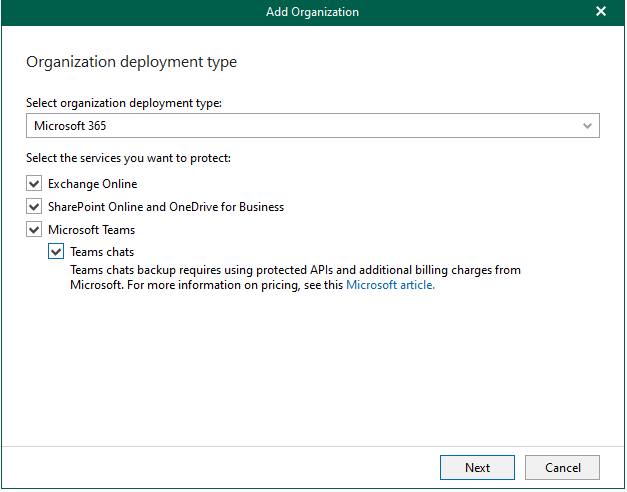
Selecting Microsoft 365 services for backup
This image shows the configuration window when adding a new organization to Veeam Backup for Microsoft 365. Here, the administrator selects which Microsoft 365 cloud services to back up—specifically:
- Exchange Online (emails, calendars, contacts),
- SharePoint Online and OneDrive for Business (documents, team data),
- Microsoft Teams, including Teams chats (note: requires a protected API and may incur additional costs).
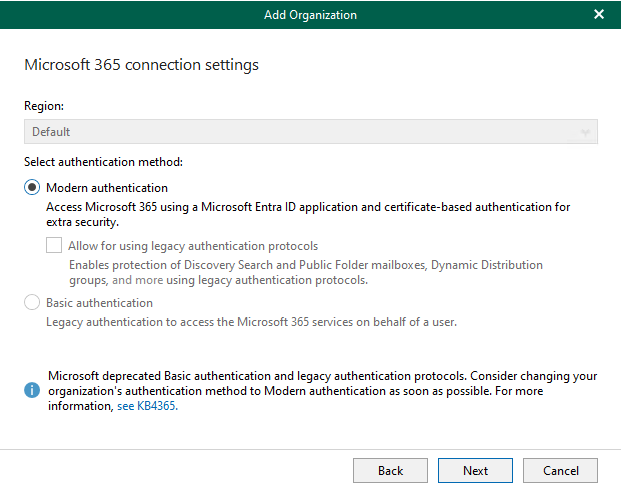
Authentication settings for connecting to Microsoft 365
This image shows the authentication method configuration when adding an organization to Veeam Backup for Microsoft 365. The user can choose between:
- Modern authentication – the recommended method, which uses Microsoft Entra ID (Azure AD) and certificate-based authentication for enhanced security.
- Basic authentication – a deprecated option that Microsoft has officially discontinued and does not recommend.
Selecting a Connection Method to Microsoft Entra ID (Azure AD)
This image shows the options for how Veeam Backup for Microsoft 365 connects to a Microsoft 365 organization via Microsoft Entra ID (formerly Azure AD). The user can choose between:
- Automatic registration of a new application – Veeam automatically creates and registers the necessary application in Entra ID.
- Use an existing application – suitable for organizations that want to manage the application and permissions manually, or already have an application configured according to their security policies.

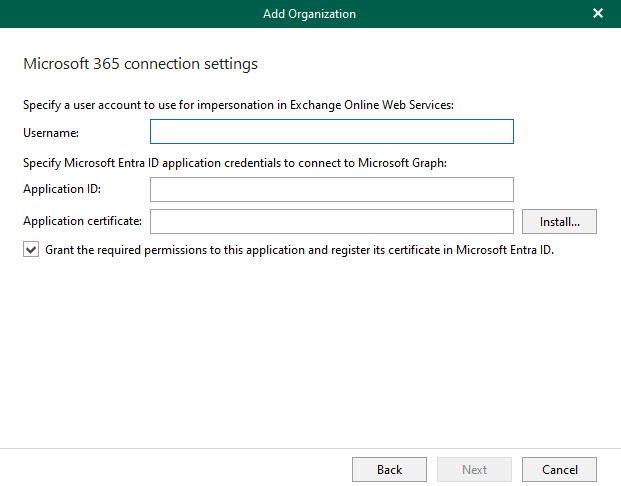
Configuring Authentication and Permissions for an Entra ID Application
This image shows the final step in connecting a Microsoft 365 organization—the following are required:
- A username that will be used for impersonation within Exchange Online Web Services (e.g., for mailbox backups),
- Application ID – the identifier of the application registered in Microsoft Entra ID,
- Application certificate, which the application uses to authenticate with the Microsoft Graph API.
The checkbox allows you to automatically grant the application the necessary permissions and register the certificate.
Creating a New Backup Job in Veeam Backup for Microsoft 365
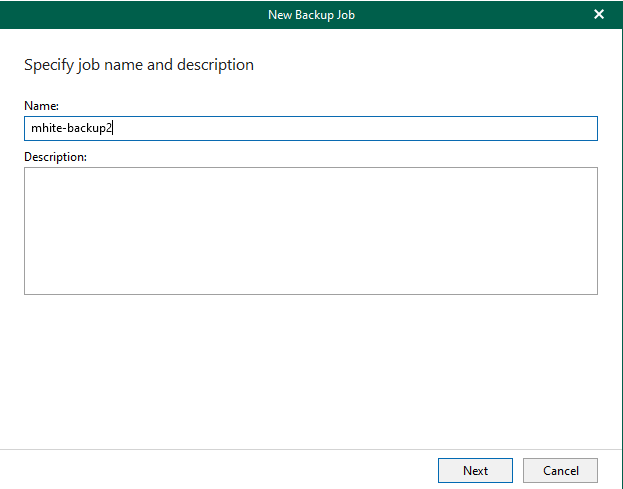
This image shows the first step in creating a new backup job in Veeam Backup for Microsoft 365.
Job description – an optional field where you can specify more detailed information about the backup targets or scope.
Job name –
Job description – an optional field where you can specify more detailed information about the backup targets or scope.
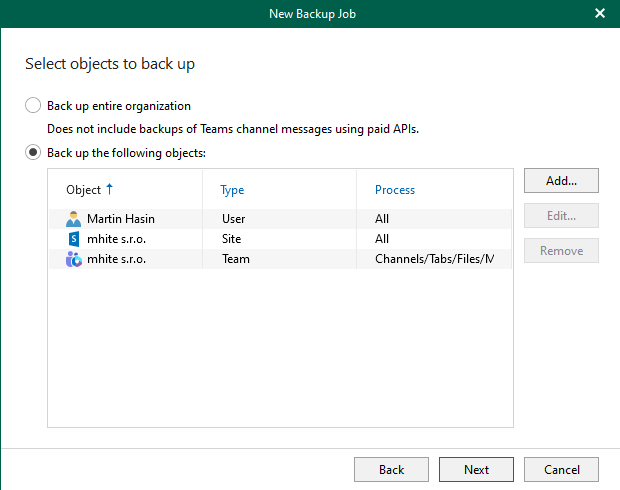
Selecting objects to back up in Veeam Backup for Microsoft 365
This image shows the configuration phase where the administrator selects which specific objects within Microsoft 365 will be backed up. The following options are available:
- back up the entire organization, or
- select specific users, SharePoint sites, or Teams teams.
The list includes the following examples:
- one user account,
- one SharePoint site (type Site),
- one Microsoft Teams team (type Team), including backup of channels, bookmarks, and files.
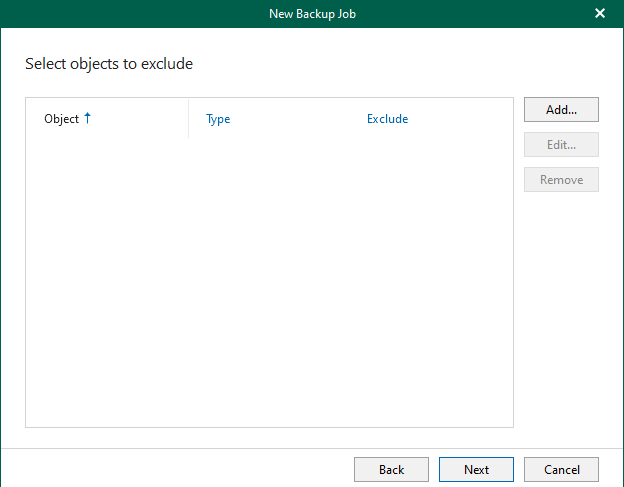
Selecting objects to exclude from the backup
This image shows an optional step when creating a backup job in Veeam Backup for Microsoft 365, where the administrator can specify which objects should be excluded from the backup. The list is currently empty, but using the Add… button, you can add specific users, teams, SharePoint sites, or groups to be excluded from the backup process.
Selecting the backup repository
This image shows a step in the backup job creation wizard where you select the destination storage where the backed-up data from Microsoft 365 will be stored. In this case, it is a local disk (e.g., Disk-E) created by the administrator. The name of the backup proxy server that will be used to process the backup is also displayed.

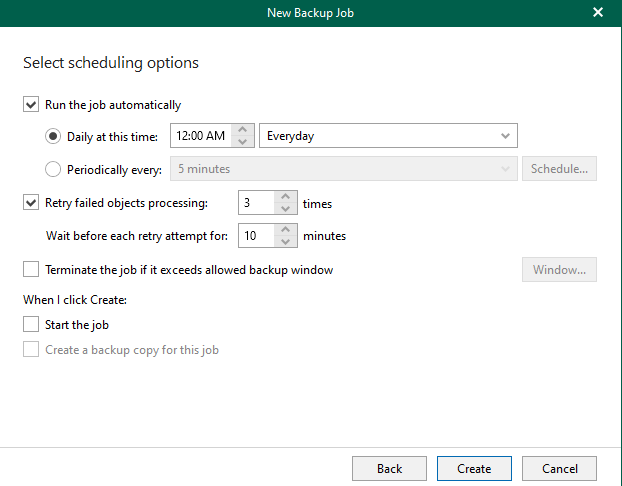
Scheduling a backup job (scheduling options)
This image shows the final step in creating a backup job in Veeam Backup for Microsoft 365, where you can configure:
- Automatic job execution – e.g., daily at midnight,
- Retry failed attempts – the job can be configured to retry the backup in case of an error (e.g., 3 times every 10 minutes),
- Option to terminate the job if it exceeds the time window (optional),
- Option to automatically run the job immediately after creation.
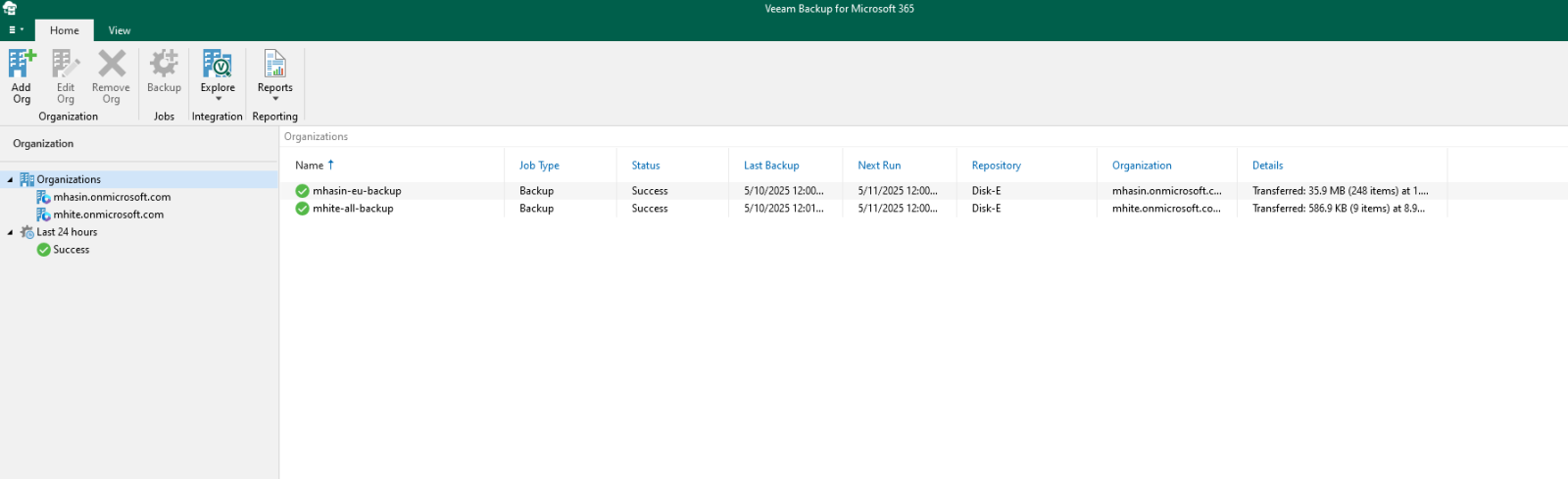
Overview of Backup Jobs in Veeam Backup for Microsoft 365
This image shows the main dashboard of the Veeam Backup for Microsoft 365 application, where the following are visible:
- Connected Microsoft 365 organizations (e.g., mhasin.onmicrosoft.com, mhlte.onmicrosoft.com),
- Backup job names (e.g.,
mhasin-eu-backup,mhlte-all-backup), - Job type (Backup),
- Status of the last job (Success),
- Time of the last and next backup,
- Backup repository used (e.g., Disk-E),
- Details of transferred data and number of items.
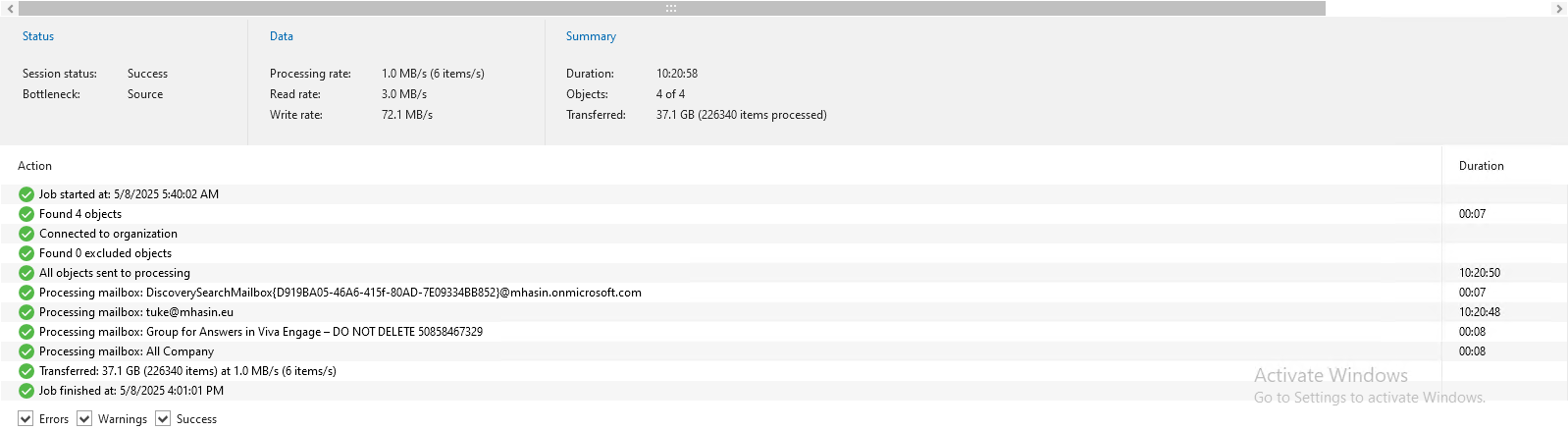
Detailed report on the progress of a backup job in Veeam Backup for Microsoft 365
This image shows the results of a successfully completed backup job. The report contains important information:
- Status: The job was successful (Success), with no errors or alerts.
- Processed objects: 4 out of 4 objects, e.g., mailboxes.
- Total data volume: 37.1 GB (more than 226,000 items).
- Backup duration: approximately 10 hours.
- Transfer speeds: write – 72 MB/s, read – 3 MB/s.
The logs at the bottom show each step of the process, from connecting to the organization, through processing individual mailboxes, to completing the task.
Microsoft Graph API and Exchange Online Throttling Policies
Microsoft enforces limits (known as throttling) on requests to cloud services to prevent excessive strain on the infrastructure. These limits apply to:
- the number of requests per second,
- the number of concurrent connections,
- the volume of data transferred over a given period.
For Exchange Online, the following are used:
- EWS throttling (for backups via the older Exchange Web Services protocol),
- Graph API throttling (for modern access, particularly for Teams and the new Mailbox API),
- Resource-Based Throttling – e.g., a limit on the number of items per hour per mailbox.
You can find more technical articles, guides, and IT news on the website: www.virtualall.sk
